


How to Set Up a Pregnancy App Birth Countdown

Índice
- What do you need to set up a pregnancy app birth countdown?
- How to set up a birth countdown step by step
- Common mistakes to avoid with pregnancy countdown apps
- What other features should you use alongside your birth countdown?
- Key takeaways
- Why I think most expectant parents set up their countdown too early
- Pregnancy tracking tools and resources at Boyorgirl
- FAQ
Setting up a pregnancy app birth countdown means entering your expected due date or related pregnancy dates into a tracking app so you can count down the days to your baby’s arrival. The best pregnancy apps, including Pregnancy+, BabyCenter, and Countdawns, build this countdown from a single clinical anchor: your estimated due date (EDD). Get that date right, and every milestone, reminder, and weekly update falls into place. Get it wrong, and your entire timeline shifts by days or even weeks.
What do you need to set up a pregnancy app birth countdown?
Before you open any app, gather the right dates. The three accepted inputs are your last menstrual period (LMP), your conception date, or your ultrasound-confirmed EDD. Each one leads to the same destination, but they require different handling inside the app.
Pregnancy countdown apps calculate EDD by adding 280 days to the first day of your LMP, assuming a standard 28-day cycle with ovulation on day 14. That 280-day convention is the global clinical standard. Apps like Countdawns and Pregnancy+ accept all three input types, but LMP remains the most common starting point for expectant parents who have not yet had an ultrasound.

The table below summarizes what each input requires and where to find it.
| Input type | What you need | Where to get it |
|---|---|---|
| Last menstrual period (LMP) | First day of your last period | Your personal records or calendar |
| Conception date | Confirmed date of conception | Fertility tracking or IVF records |
| Ultrasound EDD | Crown-rump length measurement | Your OB or midwife’s report |
Pro Tip: If you have had an early ultrasound, use that EDD as your primary input. First-trimester ultrasound dating is accurate to within 3–8 days, making it the most reliable anchor for your countdown.
Early ultrasound dating, typically performed between 8 and 14 weeks, gives you the most accurate EDD. Ultrasound dating accuracy sits within 3–8 days during the first trimester. That level of precision matters when you are planning prenatal appointments, childcare arrangements, and hospital bag packing.
How to set up a birth countdown step by step
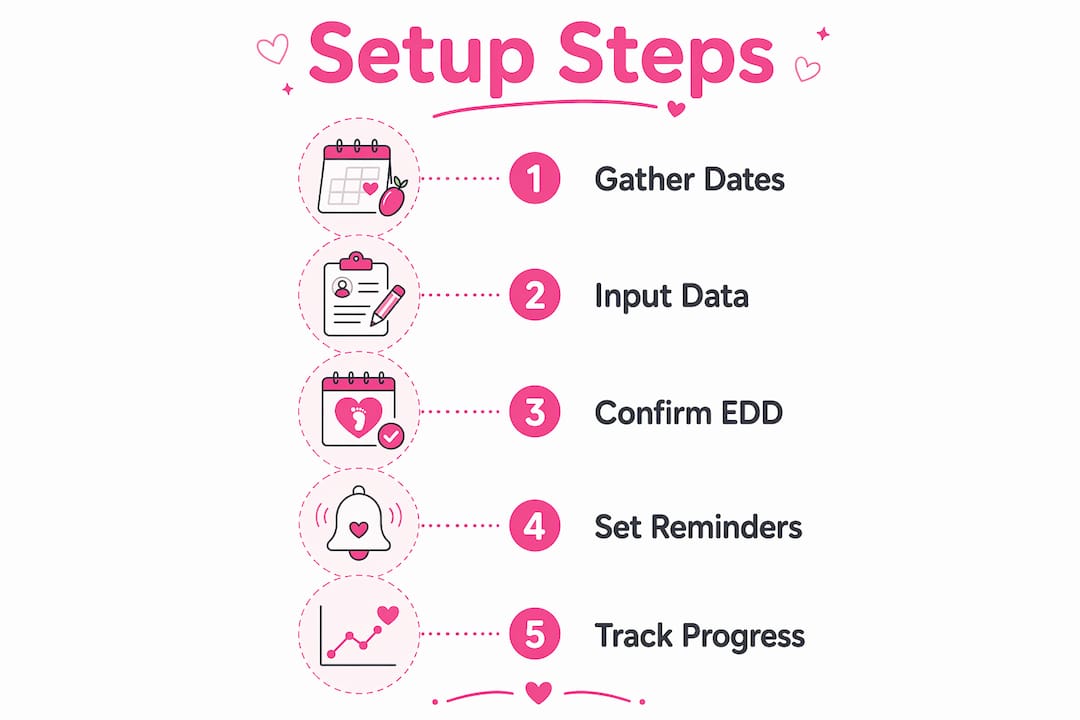
The setup process takes under five minutes in most apps. Follow these steps to get an accurate, fully synced countdown from day one.
-
Download a pregnancy app with a countdown feature. Pregnancy+, BabyCenter, and Countdawns all include dedicated birth countdown timers. Choose one that also offers weekly development updates and appointment reminders, since those features work alongside the countdown.
-
Create your profile and select your dating method. Most apps ask whether you know your due date, your LMP, or your conception date. Select the option that matches the information you have on hand.
-
Enter your date accurately. If you use LMP, enter the first day of your last period. If you use a conception date, check whether the app converts it to gestational age automatically. Conception date entry without proper conversion shifts your gestational age by approximately two weeks, which is a significant error.
-
Verify the countdown output. After entering your date, confirm the app shows the correct number of weeks and days remaining. Cross-check against a separate birth date calculator if you are unsure.
-
Customize your countdown display. Most pregnancy apps let you choose countdown units including weeks, days, hours, and minutes. Select the unit that feels most meaningful to you. Many expectant parents prefer weeks during the first and second trimesters, then switch to days as the due date approaches.
-
Set up notifications and reminders. Enable push notifications for weekly milestone updates. Add reminders for prenatal appointments. Use relative offsets tied to your due date rather than fixed calendar dates, so reminders stay accurate if your EDD changes.
-
Add a home screen widget. Countdawns and similar apps offer widgets that display your countdown directly on your phone’s home screen. This keeps your due date visible without opening the app each time.
Pro Tip: Set your hospital bag reminder as “4 weeks before due date” rather than a fixed calendar date. That way, if your OB updates your EDD after an ultrasound, the reminder moves with it automatically.
Common mistakes to avoid with pregnancy countdown apps
Even a small input error can throw your entire countdown off. These are the mistakes expectant parents make most often, and how to fix them.
-
Entering conception date without conversion. Gestational age counts from LMP, not conception. Entering conception date directly without converting it shifts your countdown by roughly two weeks. Always confirm with your care provider which dating anchor the app uses.
-
Skipping the due date update after your first ultrasound. If your ultrasound EDD differs from your LMP-based estimate by more than seven days, experts recommend updating to the ultrasound date. Failing to update leaves your countdown anchored to a less accurate date.
-
Relying on third-trimester ultrasounds to revise your EDD. Third-trimester ultrasound dating is significantly less accurate than first-trimester scans. Due date revisions based on late ultrasounds can cause confusion. First-trimester dating remains the gold standard.
-
Forgetting to refresh home screen widgets. After changing your due date, some apps require a manual widget refresh or re-generation. If your widget still shows the old countdown after an EDD update, remove it and re-add it from the app’s widget menu.
-
Using fixed calendar reminders instead of relative offsets. A reminder set for a specific date becomes wrong the moment your EDD shifts. Relative reminders tied to due date offsets stay accurate automatically, even after date changes.
“Pregnancy dashboards that centralize due-date countdown with appointment scheduling and reminders improve parent engagement and reduce anxiety.” — Designing Unified Pregnancy Dashboards
What other features should you use alongside your birth countdown?
A birth countdown tracker is most useful when it works alongside the app’s other features. The best pregnancy apps build a full pregnancy milestone tracker around the countdown, not just a timer.
Pregnancy+ includes weekly fetal development updates that show your baby’s size, organ development, and movement milestones at each stage. Leading pregnancy apps like Pregnancy+ also feature appointment reminders, photo journals, and birth plans. Premium versions add kick counters and detailed health tracking. These features turn a simple countdown into a complete pregnancy planning app.
The appointment reminder function deserves special attention. An appointment reminder app for pregnancy keeps your prenatal schedule organized without relying on a separate calendar. When reminders sync with your countdown, you see both how many days remain and what appointments are coming up, all in one place.
The table below compares key features across three well-known pregnancy apps.
| Feature | Pregnancy+ | BabyCenter | Countdawns |
|---|---|---|---|
| Birth countdown timer | Yes | Yes | Yes |
| Countdown unit customization | Limited | Limited | Yes |
| Weekly development updates | Yes | Yes | No |
| Appointment reminders | Yes | Yes | No |
| Home screen widget | Yes | No | Yes |
| Photo journal | Yes | Yes | No |
| Kick counter | Yes (premium) | Yes | No |
The photo journal feature is one that first-time mothers often overlook until later in pregnancy. Logging weekly bump photos inside the same app that tracks your countdown creates a single record of your pregnancy from week 6 through delivery. BabyCenter and Pregnancy+ both support this natively.
Key takeaways
Setting up a pregnancy app birth countdown accurately requires a clinically verified due date, correct date input, and relative reminders that update automatically when your EDD changes.
| Point | Details |
|---|---|
| Use the right dating input | Enter your LMP, ultrasound EDD, or converted conception date to start an accurate countdown. |
| Update after your first ultrasound | Replace your LMP estimate with the ultrasound EDD if the difference exceeds seven days. |
| Avoid third-trimester revisions | First-trimester dating is the gold standard; late ultrasounds should not reset your countdown. |
| Set relative reminders | Tie reminders to due date offsets so they stay accurate if your EDD shifts. |
| Refresh widgets after EDD changes | Some apps require a manual widget reset to display the updated countdown on your home screen. |
Why I think most expectant parents set up their countdown too early
Most expectant parents open a pregnancy app the day they see a positive test and enter whatever date they can find. That instinct is understandable. The countdown feels real and reassuring from the very first number. But setting it up before your first ultrasound means you are anchoring everything to an LMP estimate that may shift by a week or more once your provider measures crown-rump length.
My strong recommendation is to treat the initial LMP-based countdown as a placeholder. Use it to get familiar with the app, explore the weekly updates, and set up your profile. Then, after your 8-to-12-week scan, update the EDD with your provider’s confirmed date and reset every reminder. That one update makes the rest of your pregnancy planning far more reliable.
The anxiety reduction that comes from a well-organized countdown is real. Pregnancy dashboards that centralize your due date with appointment scheduling genuinely help expectant parents feel more in control. But that benefit only holds when the underlying date is accurate. A countdown built on a wrong EDD creates false urgency or false calm, neither of which serves you well.
The apps that handle this best, including Countdawns and Pregnancy+, make it easy to update your EDD at any point without losing your history or resetting your reminders manually. Prioritize apps with that flexibility from the start.
— Boy
Pregnancy tracking tools and resources at Boyorgirl
Boyorgirl brings together expert consultations, personalized resources, and a supportive community for expectant mothers at every stage of pregnancy.
Whether you are tracking your due date, planning your prenatal appointments, or looking for guidance on nutrition and wellness, Boyorgirl’s pregnancy resources cover the full picture. The platform combines gender prediction tools, tailored diet plans, and community forums so you have everything in one place. Explore the site to find preparation checklists, expert advice, and the community support that makes a healthy and happy pregnancy feel within reach.
FAQ
How does a pregnancy app calculate my due date?
A pregnancy app calculates your EDD by adding 280 days to the first day of your last menstrual period, assuming a 28-day cycle. You can also enter a conception date or an ultrasound-confirmed EDD for greater accuracy.
When should I update my due date in the app?
Update your due date after your first-trimester ultrasound if the new EDD differs from your LMP estimate by more than seven days. First-trimester ultrasound dating is accurate to within 3–8 days and is the clinical gold standard.
Why is my home screen widget showing the wrong countdown?
Your widget may not have synced after an EDD update. Some apps require a manual widget refresh. Remove the widget from your home screen and re-add it from the app’s widget settings to display the correct countdown.
What is the difference between gestational age and conception age?
Gestational age counts from the first day of your LMP, while conception age counts from the actual date of fertilization. Gestational age is typically two weeks longer. Entering a conception date without converting it to gestational age shifts your countdown by approximately two weeks.
Which pregnancy app is best for birth countdown tracking?
Pregnancy+, BabyCenter, and Countdawns each offer birth countdown features. Countdawns leads on customization and widget support. Pregnancy+ offers the most complete feature set, including weekly development updates, appointment reminders, and a photo journal.
Article generated by BabyLoveGrowth
Visita nuestras redes sociales
Best SheBirth.com Alternatives for Pregnancy Support

Pregnancy Partner Support Tips and Examples That Work

Amniocentesis Gender Detection: Accuracy, Risks, and What to Expect

How to Download Pregnancy Platform Progress Reports

Why Pregnancy Trimesters Are Divided: A Clear Medical Guide

Pregnancy Budget Planning Checklist for Expectant Parents
-
Pingback: Pregnancy Weight Tracker: What Every Expectant Mom Needs - boyorgirl.blog